Mastodon

Posts in "tech"

My Minimalist Writing Setup

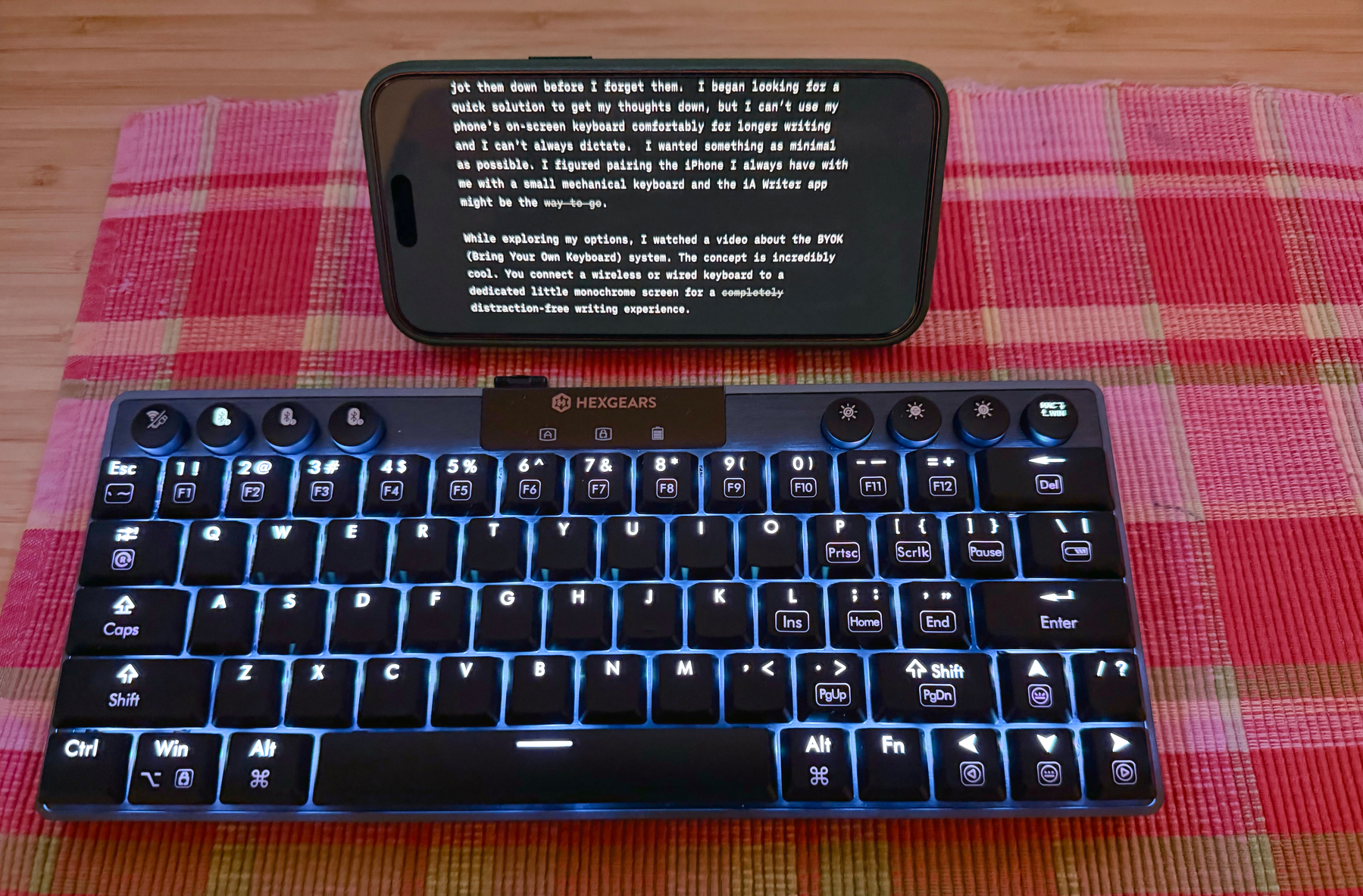
A minimal typing setup featuring a backlit Hexgears compact mechanical keyboard in front of a smartphone displaying a writing app in landscape mode, resting on a pink and red plaid cloth.

Often, my ideas come at random times and places and I need to jot them down before I forget them. I began looking for a quick solution to get my thoughts down, but I can’t use my phone’s on-screen keyboard comfortably for longer writing and I can’t always dictate. I wanted something as minimal as possible. I figured pairing the iPhone I always have with me with a small mechanical keyboard and the iA Writer app might be the way to go.

While exploring my options, I watched a video about the BYOK (Bring Your Own Keyboard) system. The concept is incredibly cool. You connect a wireless or wired keyboard to a dedicated little monochrome screen for a completely distraction-free writing experience.

The BYOK definitely has some attractive features. It is small in size and seems very portable. The screen looks high quality, featuring sharp text and excellent contrast for eye comfort. However, here is why I am sticking with my current iPhone setup:

  • Flawless Syncing: iA Writer lets me sync effortlessly across iCloud or attach a shared folder on my network. I prefer the shared folder route, and since it is hosted on iCloud, I get all those baked-in syncing benefits automatically. If I decide to change apps at any time, all I need to do is point the new app to my shared folder and pick up where I left off.
  • No New Ecosystems: The BYOK offers WiFi and a companion “Studio” app/service to sync your documents. But I strongly prefer keeping my files natively on my own devices and iCloud rather than relying on a separate third-party service transferring manually or saving to a microSD card.
  • Zero Extra Cost: I already own my phone, the app, and the keyboard. They pair together perfectly without the need to buy another piece of hardware.

Sometimes the best productivity tools are the ones we already have right in front of us. I totally understand that niche products carry a premium price tag to cover production, research and development. However, at $200, it is hard for me to justify the purchase. If it were priced closer to the $100 mark, I would probably be more inclined to buy one. Right now, I am happy with the current setup.

🎧 Listen to this post. Audio was generated using ElevenLabs.

#Minimalism #Productivity #iAWriter #iPhone #MechanicalKeyboard

My MacBook Neo Work Kit

🎧 Listen to this post. Audio was generated using ElevenLabs.

When I bought my indigo MacBook Neo a few days ago, I had one clear goal in mind: a small, capable machine I could take to on-site tech jobs without lugging around a full-sized laptop. The Neo itself checks every box so far. But a great laptop is only half the story. The other half is what I pack with it.

The Neo comes with two USB-C ports and a headphone jack. For a minimal laptop, these are the bare essentials. One port runs at USB 3.0 speeds and supports video out, while the other is strictly USB 2.0. That difference is critical to remember if you are transferring large files on-site and care about speed. Because there are no HDMI or ethernet ports, a reliable hub is an absolute must. In fact, it is the centerpiece of my entire accessory kit.

The hub I use is the Anker USB-C Hub. It pairs perfectly with the Neo because it supports Power Delivery input, meaning I can charge the laptop right through the hub while working. That setup frees up the Neo’s second USB-C port entirely. Beyond charging, the hub provides extra USB-C ports, standard USB-A ports for older flash drives, an HDMI port for external displays, and an ethernet port for a rock-solid wired connection. I just plug in the hub, and the Neo is instantly ready for whatever the job requires.

The rest of the kit is pretty straightforward. A standard USB-C cable and charging adapter handle power when I am not using the hub. To keep the laptop safe, the tomtoc 360° Protective Laptop Sleeve does the job without adding unnecessary bulk. Although, it does not fit the Neo like a glove. It is just a bit bigger. For longer days away from wall outlets, I toss in my Anker Prime Power Bank. It puts out 250W and easily supplies a full backup charge.

What I appreciate most about this setup is its modularity. At its simplest, it is just the Neo tucked into the sleeve, incredibly light and easy to grab. When a job demands more, everything packs neatly into my 5.11 RUSH 12 backpack. I throw in extra adapters, an ethernet cable, network testers, screwdrivers, a small USB light for dark rooms, and a classic notebook and pen. Every piece has its designated place, allowing the kit to grow or shrink based on the job’s demands.

I have no illusions that this configuration is permanent. The more jobs I tackle with the Neo, the more I will streamline things. New gear will get added, and other things will probably get left behind. If you have built a similar kit around a portable laptop like the Neo, what is the one unexpected item in your bag? I would love to hear about it. Drop a comment below or reach out directly!

#Apple #MacBookNeo #TechGear #WorkKit

MPU #836 - Stephen Robles Nailed It!

I usually listen to the Mac Power Users podcast on Mondays, but I couldn’t wait this week. I just finished listening to Mac Power Users #836 with Stephen Robles as the new co-host a few minutes ago, and he nailed it! For those of you who haven’t heard yet, Stephen Hackett has stepped aside to focus on other projects, so David Sparks needed a new tech partner. After searching high and low, I am sure, he invited Stephen Robles to fill the big chair.

Although not as long as I have been a Mac Power Users fan, I’ve been a fan of Stephen Robles for a while now. He makes excellent YouTube videos and co-hosts a weekly tech news-focused podcast called Primary Tech with Jason Aten. It’s one of the shows I look forward to every week. They’re a great team. Anyway, Stephen brought that same energy to the MPU audience this weekend. His enthusiasm was contagious, and the chemistry with David was flawless. He fits right in.

He earned this spot not because he has a YouTube channel or another podcast, but because he truly knows his stuff, is genuinely excited to talk about it, and is naturally curious. In my opinion, he was the best possible choice.

What an exciting time. I feel better after listening to the episode because, frankly, I was a bit hesitant. I like both of these guys, but I wasn’t sure how well they’d mesh. It’s not an easy thing to step into.

Of course, I’ll miss Stephen Hackett on MPU. But I’m sure he’ll be back as a guest, and I’ll keep following his work through his other podcasts and his writing at 512 Pixels.

Congratulations, Mac Power Users team. I’m super happy to be part of this community. It’s like my comfort zone, and I appreciate it staying at such a high quality.

#MacPowerUsers #Podcast

My New Favorite Desk Accessory

I like finding practical solutions to my problems. I love finding practical solutions to my problems when I can use tech and don’t even have to leave the house to do it .

I’ve been trying out a lot of pens and pencils with my notebooks lately, but they’ve been scattered all over my desk. I decided I needed a proper place to put them. Instead of going out to the store and buying something, I 3D printed a holder for my desk.

It came out really good. It is nice and smooth, except for the textured outside walls. That part was on purpose.


#3DPrinting #DeskSetup #Organization

A white 3-D printed cup to hold my pens, pencils, straight edge, etc. The outside walls of the cup have a texture to it, akin to a brick wall of sorts. The print came out, very smooth all around except for the textured parts which was intentional. 

Locked Out of Your Digital Life

Imagine walking into your local big box store to buy a $500 gift card. You try to redeem it to pay for your iCloud storage, but the card number gets declined. To make matters worse, Apple flags your account for fraud. Suddenly, they lock your entire account. Now, you are completely shut out. Your iCloud account, photos, music, and every other Apple service you subscribe to are now inaccessible.

Everyone always talks about using long and complex passwords and two-factor authentication to keep hackers out. But what if the company you entrust with your data is the one that locks you out? What is the recourse? What if they don’t see the problem the way you do? They might simply say you violated a policy, never tell you the specifics, and leave you with no access.

taking pictures or recording video with an iPhone and having it automatically back up to the cloud is incredibly convenient. I am not going to stop doing that anytime soon, and neither are most of you. However, we really need to think about situations like the one I described above because this isn’t just a hypothetical scenario; it actually happened to, Paris Buttfield-Addison, a user in Australia. As of this writing, I don’t believe he has resolved the issue. Apple reportedly won’t tell him exactly why they locked his account, at least not with enough detail for him to fix it. You can read all about his nightmare situation on his blog.

Do you have a backup of all your data in case that happens to you?

I wrote about a possible solution a little while ago using an app called Parachute. This tool connects to my iCloud account, downloads all the synchronized pictures and videos, and backs them up to my NAS at home. I also have another instance running that downloads my pictures onto an external hard drive or SSD at a different location. The app even lets you download your iCloud Drive files, which I have opted to do as well. Just in case.

If you don’t have a plan yet, I suggest you start thinking about your exit strategy. Just like it happened to that gentleman in Australia, it could happen to any of us. The folks at MacBreak Weekly did a great job explaining the problem and discussing solutions, so check them out in the video below, too.


#DataBackup #iCloud

Getting Reacquainted with Homebrew

I’ve been diving back into Homebrew today. I installed it a while ago but never really used it. I’m still learning the ropes, but I’ve made some progress by installing a few packages and experimenting with them. Here’s what I’ve added so far:

  • htop
  • glances (a bit more graphical than htop)
  • wget
  • tmux
  • git
  • bundle
  • mas (for Mac App Store)

I’ve created a Brewfile and successfully updated all my apps, including those from the Mac App Store and macOS itself. All while using the command line in iTerm2. The cool thing about a Brewfile is that it acts like a snapshot of my setup. I can use it to update all my installed apps at once, which is pretty convenient. Even better, if I ever get a new Mac, I can install Homebrew, point it to this Brewfile, and recreate my entire setup automatically. I haven’t tested that scenario yet, but I plan to keep this file current so it’s ready whenever I decide to start fresh with a clean system.

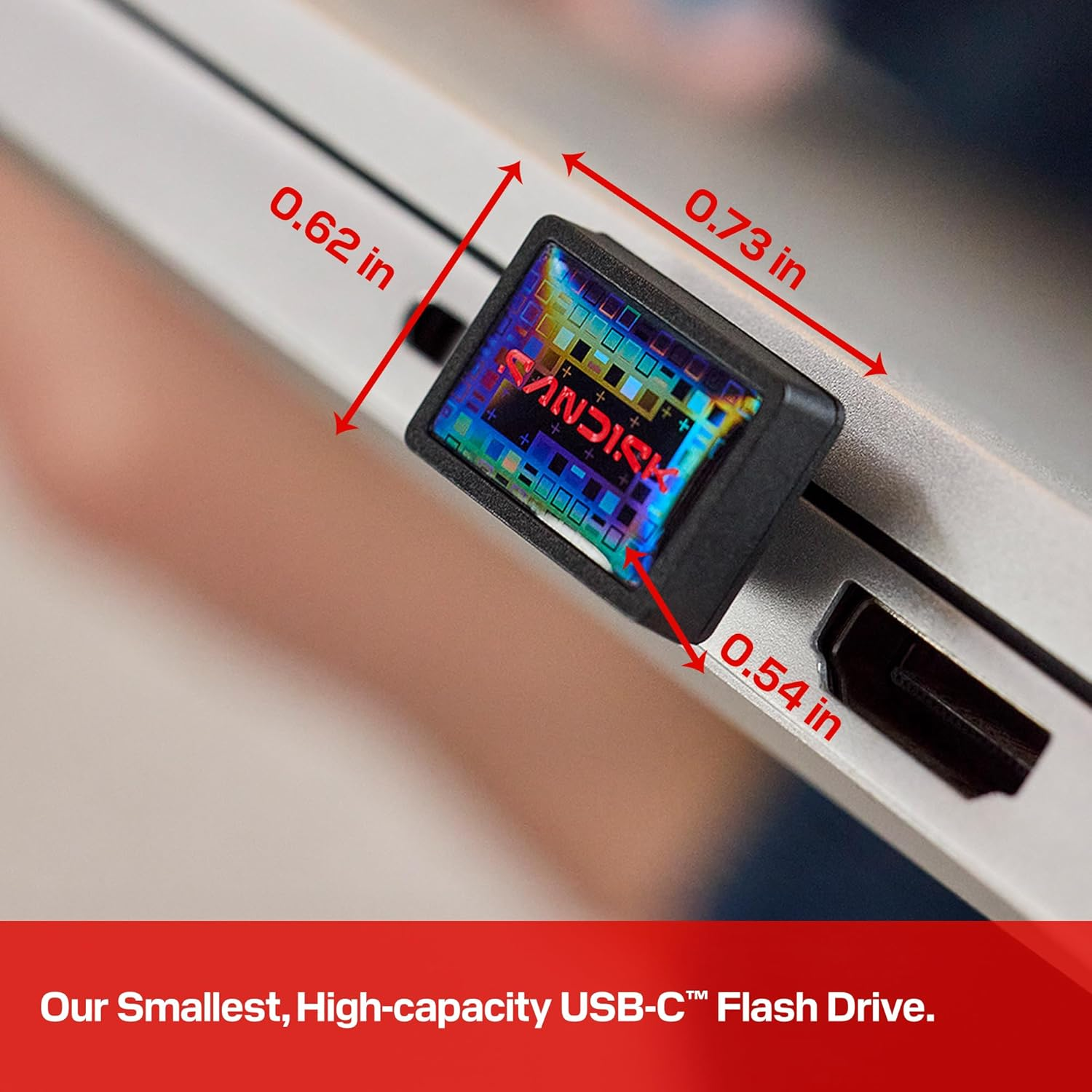
SANDISK 1TB Extreme Fit USB-C Flash Drive

Photo from [Amazon.com](https://amazon.com)

Sandisk’s new 1TB USB-C drive is so small you never need to take it out

Sandisk has released what it says is the world’s smallest 1TB USB-C flash drive, one tiny enough to plug into a laptop and never take out.

This sounds like a great idea, but I’ll pass on leaving it connected at all times. Even though the device is small, it looks like a huge lever waiting to be pulled downward and break my USB-C port. On the other hand, I can see the convenience of having it in my bag to carry large files, like movies, with me wherever I go for use on both my MacBook and my iPad. I can see myself using it as a backup for my photos when I travel, too. Although, being this small, it makes it much easier to misplace or lose altogether.

MPU Holiday Gift Guide (2025)

Could a Modern iPod Actually Work Today?

Could Apple Bring Back The iPod For A Special Anniversary Edition?

…Apple released the iPhone Pocket a day after the iPod turned 24. That said, could the company bring back its iconic product for a special anniversary edition in 2026, when it completes 25 years?

Yes, please! Maybe it’s because I’ve been on a music rediscovery kick lately with my (new) Sony Walkman, but I think this would be an awesome idea. How cool would it be if Apple reintroduced the iPod Classic to celebrate its 25th anniversary? I don’t think they would do it, but it would be cool.

I have my old iPod Classic and it still works, so instead of having Apple bring back the old iPod Classic purely for nostalgia purposes, what if they brought back an entirely new dedicated music player? It would have to be something that entices audiophiles and casual listeners alike. With the resurgence of physical media being purchased by younger generations, I don’t see this as a stretch.

Imagine Apple releases an iPod that’s like the Classic in that it has one purpose: to play music at the highest quality possible. I think they have a real shot because younger people are buying vinyl, Blu-rays, DVDs, and old CDs to go back to a simpler time. It’s like they’re trying to experience something new, because to them, streaming services are “so yesterday.” They want to try something cool, like listening to vinyl or busting out a Sony Walkman like I did and enjoying that for an evening.

Maybe it’s not nostalgia for them but something genuinely new that sparks their interest. I think they’d be hooked because they wouldn’t have to listen to the compressed streaming quality they may be used to. Instead, they’d get high-quality lossless audio that I’m sure Apple could deliver in an iPod 2026 edition. What a cool thought experiment. I’m all in.

USB Colors

Have you ever stopped to notice that your USB ports have different colors? Some are blue, some are black, and some are red—but what do all these mean? It’s OK if you don’t know, because manufacturers don’t follow a universal standard. It all depends on what they feel like coloring it. The saving grace is that many of them do conform to certain conventions.

For example, blue ports typically represent the higher-speed USB 3.0 or 3.1 standard, which means faster data transfers compared to older versions. Red or yellow ports often signify “always-on” or high-power charging capabilities, meaning your devices will keep charging even when your computer is asleep or completely off.

These colors, in short, mean something. They can indicate faster speeds, enhanced features, or higher charging capacity. Unfortunately, since there’s no universal standard dictating what each color means, we still have to depend on reading the manufacturer’s manual for definitive answers.

Every computer is most likely different, and even models within a certain manufacturer’s lineup can vary.

The bottom line… While color conventions exist and can be helpful guides, always check your device’s documentation to know exactly what you’re working with.

Nikhil Azza from BGR has written a great article explaining these colors more in depth. Check it out here.

Each port color signifies a specific functionality, and plugging your gadget into the right USB port can make a noticeable difference in speed and performance.

Follow Me On Mastodon | Buy Me A Coffee