Mastodon

Protect Your New Phone

You’re Going to Drop Your New iPhone 17. Don’t Skimp on the Case

Remember to grab something to protect your new device. Many of your favorite brands, like Casetify, have already released new cases for the upcoming iPhone 17 models. Even Apple has dropped its new line of cases, with some fun new accessories, too.

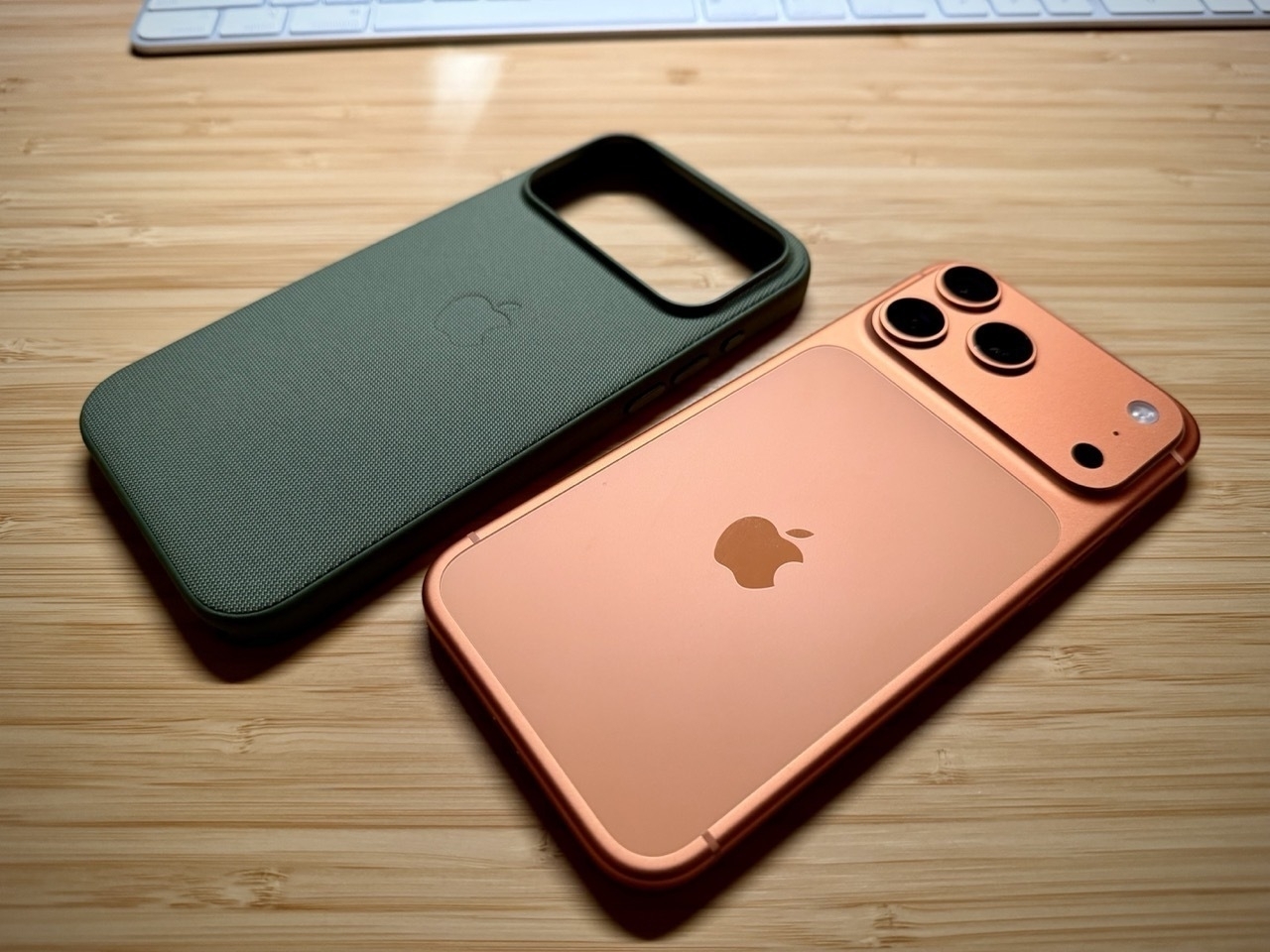
Man, I felt like this article was written just for me. When the new phones were announced and they mentioned the Unibody of the Pro phones, I immediately thought of going caseless for the first time ever. I figured that since Apple keeps touting how durable everything is, I could just run around with a “naked” phone. I mean, I do have Apple Care, right? That’s better than a case, isn’t it? These are all the things that ran through my head, but then I chickened out after a bit. Reading this article just confirmed my bias, and I ordered a case for it.

Actually, I ordered two cases. Originally, I ordered the silicone case in orange to complement my phone. However, when I received it yesterday, I remembered why I don’t like silicone cases. They feel fragile. They feel great when they’re new, but then they get all stretchy and loose. At least that has been my experience in the past. Then, I took a second look at my wife’s Tech Woven case, and it felt good in the hand. I even tried to scratch it with my nail, and it didn’t even leave a mark. So, I ordered one for myself and I’m going to return the silicone one.

Apple Magic Keyboard or ESR iPad Keyboard

I’m continuing to use my iPad more as a creation device than a consumption device. So I’ve made a couple of changes to better fit this new purpose.

First, I got a “paper”-like magnetically attached screen protector. This allows me to easily remove it when I’m not in the mood to write notes with my Apple Pencil. It’s been working out pretty well so far. It does make the screen look a little darker, but the magnetic attachment is perfect because I can just remove it at will. It also gets a bit irritating to use the iPad as a touch device because the texture is rough, and after a while it becomes uncomfortable on the fingers. When I’m writing in GoodNotes, however, I really like the experience. It doesn’t feel exactly like paper, of course, but it does provide more friction and makes my writing experience much nicer.

I also wanted to be able to type out ideas, blog posts and my daily notes in Obsidian using the iPad. When I’m on my computers, I use those, but when I’m out and about or in the car stuck in traffic—I can easily take out my iPad and type something out. I’ve never been a fan of the onscreen keyboard, so I decided to buy both the Apple Magic Keyboard and the ESR Bluetooth iPad Keyboard. In other words, I bought the cheapest popular option as well as the most expensive popular option so I could try both extremes and see which one I like best. Well… there are definitely pros and cons to both and it is not as clear cut a decision, as you may think.

Apple Magic Keyboard

Pros

  • Premium build quality with solid construction
  • Keys have excellent tactile feel (not squishy)
  • Sleek, lightweight design
  • Automatic disconnect when detached from iPad
  • Optimal viewing angle for both lap and desk use
  • No accidental trackpad activation issues

Cons

  • Expensive at $300 (3x the cost of ESR)
  • Provides no protection for the iPad
  • No storage or attachment point for Apple Pencil
  • Leaves iPad vulnerable to damage when not in use

ESR Keyboard

Pros

  • Budget-friendly at only $100
  • Full protection for the iPad with case design
  • Magnetic Apple Pencil attachment and storage flap
  • Very responsive key input
  • Built-in battery for extended use

Cons

  • Much thicker and heavier (feels like 2x the weight)
  • Squishy key feel with loose rubber covering
  • Frequent accidental trackpad activation
  • Too steep viewing angle on flat surfaces
  • Manual power-off required (doesn’t auto-disconnect)
  • Flimsy construction around charging port/speaker area
  • Difficult iPad insertion that almost damaged my “paper” screen protector
  • Lower overall build quality

Bottom Line

The Apple Magic Keyboard offers premium quality and user experience at a premium price, while the ESR keyboard provides good value and protection features but with notable usability compromises. Your choice depends on whether you prioritize build quality and user experience (Apple) or budget-friendliness and device protection (ESR). For me, it came down to choosing the Apple Magic Keyboard, even though I do not consider it a perfect solution for the price. I am still testing and exploring my options out there.

Signal Cloud Backup

Signal adds secure cloud backups to save and restore chats

Signal has introduced a new opt-in feature that helps users create end-to-end encrypted backups of their chats, allowing them to restore messages even if their phones are damaged or lost.

I have been a Signal user and supporter for years now, but restoring it to a new iPhone has always been a pain. I hope that this new cloud backup makes it easier while keeping it secure. However, the most important thing here is that you can’t restore your Signal data if your phone is damaged or lost. This hopes to midigate that.

Tiny Vinyl

Tiny Vinyl is a new pocketable record format for the Spotify age

“I’ve already pre-ordered two Tiny Vinyl records,” Fred Whitacre Jr, a teacher, drummer, and record collector from Warren, Ohio, said. “But, I don’t think it’s something I’m going to delve very heavily into. I always like when vinyl pressings try something new, but for me, I’m probably going to stick with LPs and 45s.”

Tiny vinyl? That’s the coolest thing I’ve heard of in a while! I didn’t grow up with vinyl myself, but I inherited my first few records from my dad. Now we have a collection of about 100 or so. The funny thing is that my teenagers love vinyl too. I didn’t encourage them to listen to records or anything—they just picked up the love themselves. It’s amusing watching them flip through albums like in the old days, selecting their favorites to take to their rooms from time to time. I hope tiny vinyl records are compelling enough to gain traction and stick around for a while. I, for one, am rooting for them.

National Preparedness Month

National Preparedness Month: 12 Ways to Prepare

Amateur radio serves as a powerful tool and national resource before and When All Else Fails®, but being prepared goes beyond radio.

Great reminder to take time and make sure you and your family are prepared for any kind of emergency, especially this month. A dozen things they mention in the article are

• Sign up for alerts and warnings • Make a plan • Save for a rainy day • Practice emergency drills • Test family communication plan • Safeguard documents • Plan with neighbors • Make your home safer • Know evacuation routes • Assemble or update supplies • Get involved in your community • Document and insure property

Parachute Backup

Just learned about Parachute Backup from the Mac Power Users and it is great! It downloaded the entire iCloud Photo library onto my NAS, which is worth the price of admission all by itself. But, it didn’t stop there. It also organized all of my photos and videos by year and month. Now, I have my backup and I can use the media in it’s organized state with other apps like Plex. I love it and highly recommend it.

September 2025 Apple Event

Here are my takeaways for Apple’s September 9, 2025 event. It is not a comprehensive list of everything they announced, but what I thought was interesting.

Air Pods Pro 3

• Heart rate monitor • 4× better Active Noise Cancelling (ANC) • Language translation • Includes 5 ear tips • 8 hours of battery with ANC on • 10 hours of battery with transparency on • Same $249 price tag

Apple watch

Series 11

  • 5G connectivity
  • 24-hr. battery life
  • Hypertension notifications
  • Sleep score

SE 3

  • 18 hr. battery life
  • Supports fast charging
  • 15 minute charge can get you up to 8 hours of battery
  • 5G connectivity
  • Sleep Apnea notifications
  • Sleep score

Ultra 3

  • Larger screen
  • 42 hours of battery life
  • 5G connectivity
  • Satelite comms.
  • Hypertension notifications
  • $799

iPhones

iPhone 17

  • Comes in 5 colors
  • 6.3 inch display
  • Pro-Motion (120 Hz)
  • 3,000 nits peak brightness
  • 8 more hours of battery
  • 20 minutes of charging can get you up to 50% battery
  • 48 MP Fusion camera
  • 2x telephoto
  • 24 MP default camera
  • Front Center Stage camera has square sensor (2x)
    • 18 MP front camera
    • Image stabilization on front cam.
  • 256 GB base model

iPhone Air

  • 5.6 mm thick
  • 6.5 inch display
  • Pro-Motion display
  • 3,000 nits peak
  • ceramic shield on front and back
  • New “plateau” on the back houses rear and front cameras, silicon and speaker
  • Frame is Titanium
  • Comes in 4 colors
  • A 19 Pro CPU
  • N1 wireless chip
  • C1X Modem
  • 48 MP Fusion camera
  • Dual capture video using front and rear cameras simultaneously
  • eSIM worldwide
  • “All Day Battery Life”
  • Accessories
    • magsafe battery pack
    • clear case
    • bumper
    • cross body strap

iPhone 17 Pro

  • Aluminum Unibody
  • vapor chamber for cooling
  • comes in 3 colors… silver, blue, orange
  • A19 Pro CPU
  • ceramic shield on front and back.
  • 39 hours of video playback
  • 18 MP Center Stage front camera
  • All 3 rear cameras are 48 MP and are Fusion
  • 4× zoom at 100mm and 8× zoom at 200mm

What I Don't Like About the reMarkable Paper Pro Move

Here are some things that I don’t like about the reMarkable Paper Pro Move.

  • The hefty price tag. At close to $650 for the tablet, pen, and folio bundle (including sales tax), it’s a significant investment.

  • Poor accessibility for visually impaired users. As someone with visual impairment, I find the menus extremely difficult to see, if I can see them at all. The background templates—like lined, grid, or dot paper—are virtually impossible for me to make out. This means I frequently need assistance from a sighted person or my assistive technology to navigate basic functions.

  • The subscription model. The $2.99 monthly fee for reMarkable’s Connect service is a sticking point for many users, myself included. However, the more I use it, the more I appreciate its benefits. With the free 100-day trial, I suspect it’ll become indispensable, and I’ll gladly pay for it once the trial ends.

  • Constant passcode entry. I understand the security reasoning, but having to enter the passcode every time I wake the tablet becomes tedious quickly.

  • My handwriting somehow gets worse. This one’s a “me” issue, but I don’t like how I write on the tablet. You’d think it would feel just like writing on paper, but for some reason, my handwriting actually deteriorates on the device.

  • Tiny menu fonts. The menus use incredibly small fonts that even some sighted people in my life struggle with—though maybe that’s because they’re over 40 years “young.” (See what I did there?)

  • It’s not silent like paper. While I dislike the click-clacking sound my iPad makes when writing on glass, this tablet produces similar noises. It’s not the mostly silent experience of writing on actual paper. Perhaps I need to write with a lighter touch—time will tell.

  • Durability concerns for daily use. I plan to carry this tablet everywhere, but it feels fragile with no IP rating for dust or water protection. I’m not planning beach trips or rain writing sessions, but it rains almost daily where I live, and sometimes I have to dash from my car to work. For this price point, I wish it offered some weather and dust protection.

  • Zoom lag issues. Since I need to zoom in on my writing periodically, I’ve noticed the tablet occasionally lags during this function. Sometimes it takes two or three attempts before it responds to my zoom gesture.

What I Like About the reMarkable Paper Pro Move

Here are the things I like about my new reMarkable Paper Pro Move, in no specific order.

  • It is small and portable. You can easily take it anywhere, especially in your EDC bag or purse.
  • Its compact size makes it convenient to carry everywhere with you. It even works out great on your bedside table since it does not take up a lot of room.
  • The pen has a nice weight to it and feels premium all around. It’s also super responsive.
  • The tablet itself is very responsive in everything I tried, from navigating the menus to seeing the ink appear on screen as you write. This also feels like a premium product.
  • I love the fact that the pen has a built-in “eraser.” All you have to do is flip it around like you would with a regular old-fashioned pencil to use it.
  • The handwriting-to-text conversion is fast and pretty accurate overall. It does make mistakes, but I think that has more to do with my bad handwriting (see screenshot below).
  • Being able to magnetically attach the pen to the side and have it charge is fantastic.
  • Two-finger scrolling of the page is very smooth for the most part.
  • Outward pinch to zoom in to your writing is great, especially when details are important.
  • The desktop app, paired with the Paper Pro Move and their Connect service, is nice. Syncing is generally fast, but sometimes I had to close the app and restart it to see changes. This was rare, but it did happen to me a couple of times.
  • Simple detail, but I like that it has rubber feet on the back, so it doesn’t slide when you write on it while it sits on your desk without the folio.
  • I haven’t verified this, but supposedly a 10-minute charge will give you 3 days of use.
  • The leather folio is excellent. It fits like a glove, and the magnets are strong and secure the tablet very well. I love the flap that conveniently fits over the pen to secure it with magnets. I also like the way it tucks behind when you have it open and are using the Paper Pro Move.
  • A lot of people complain about the paid Connect service that reMarkable offers, but I think it’s cool that they offer the first 100 days for free.

Tomorrow, I will share the things I do not like about the tablet, so don’t be shy and come on by.

Follow Me On Mastodon | Buy Me A Coffee