Mastodon

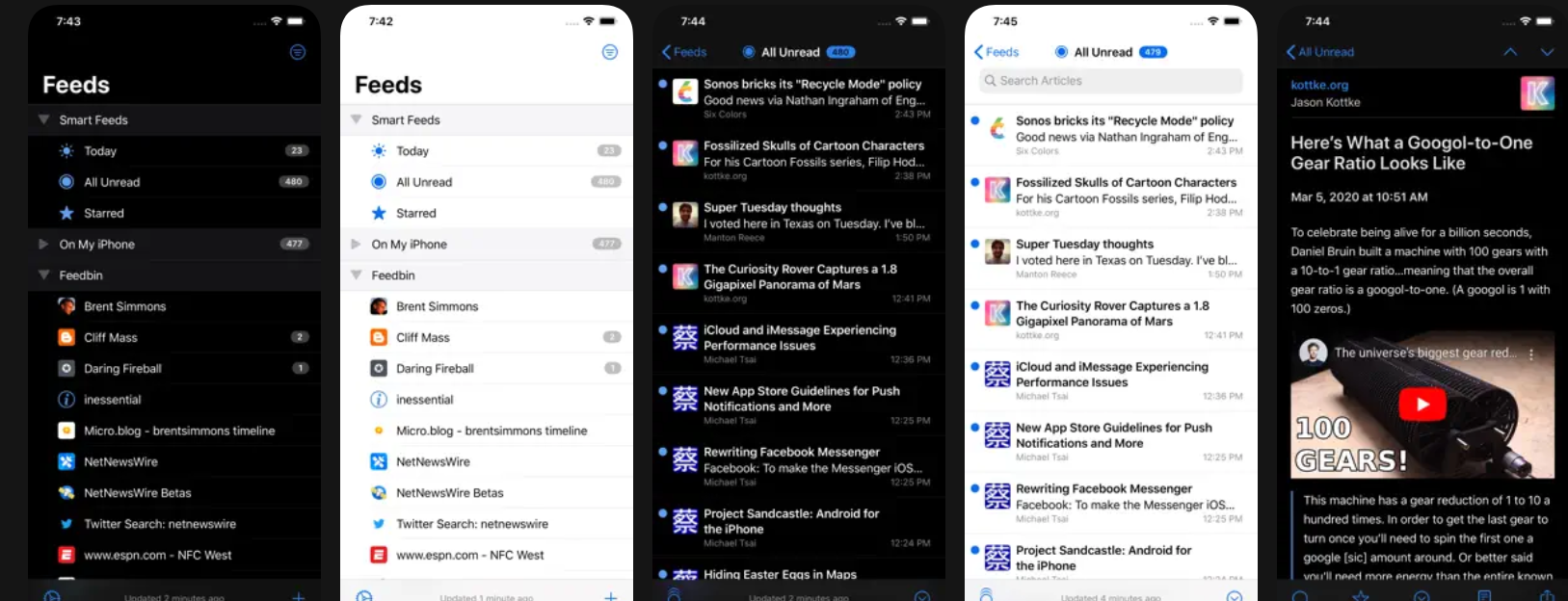
NetNewsWire 6.2

A series of app interface screenshots displays various feed and notification screens on a mobile device.

Of all the RSS reader apps I’ve tried on my iPhone and iPad, I love NetNewsWire the most. It’s been the most accessible option for me since I use VoiceOver to have it read article titles and content aloud. Then version 6.2 came out.

The update includes a whole list of improvements in the changelog, which sound great. The most popular addition seems to be Markdown support in RSS feeds. I don’t know why people are so excited about this feature, but it’s there. I’ll probably look into it more later.

However, in the meantime, the update has broken the app for me in some ways. I can still tap on something to hear the article title, and I can have it read the entire article once I double-tap to open it. But here’s the problem: I used to swipe three fingers from right to left on the screen to move to the next article. In this version, that gesture doesn’t work anymore.

Now I have to tap this tiny “next article” arrow in the top-right corner of the screen. It’s a really small target for me to hit, which delays the process and makes reading less comfortable. I hope the next update (hopefully coming very soon) will restore the three-finger swipe gesture for navigating to the following article.


Dragon's Milk

A glass filled with a dark amber liquid, likely a beverage, is placed on a light-colored surface.

Dragon’s Milk is a signature bourbon barrel-aged stout that delivers a complex flavor experience. With notes of coffee, vanilla, chocolate, and oak, it packs a punch at 11% ABV. Despite its bold, intense flavor, this beer goes down surprisingly smooth. The bourbon barrel aging adds depth and character, making each sip a rich, warming experience that’s perfect for savoring slowly.

Kodak Gold and Ultramax

Kodak Quietly Begins Directly Selling Kodak Gold and Ultramax Film Again

It is probably too soon to say how big of a deal this is, but it is at least exciting for people who are in the resurgent film photography hobby, who are desperate for any sign that companies are interested in launching new products, creating new types of film, or building more production capacity in an industry where film shortages and price increases have been the norm for a few years.

I remember back in the day when I was learning to shoot film. My parents would take me to the local drugstore where we’d buy Kodak Gold film. Man, that sentence makes me sound and feel so old. Anyway, those rolls came in either 24 or 36 exposures, and I had to make every single shot count. Once I’d finished a roll, we’d take it to Eckerd or whatever drugstore was nearby to get it developed.

Kodak has always held a special place in my heart, mainly because of nostalgia. After a decade away from direct sales, I’m thrilled they’re making a comeback.

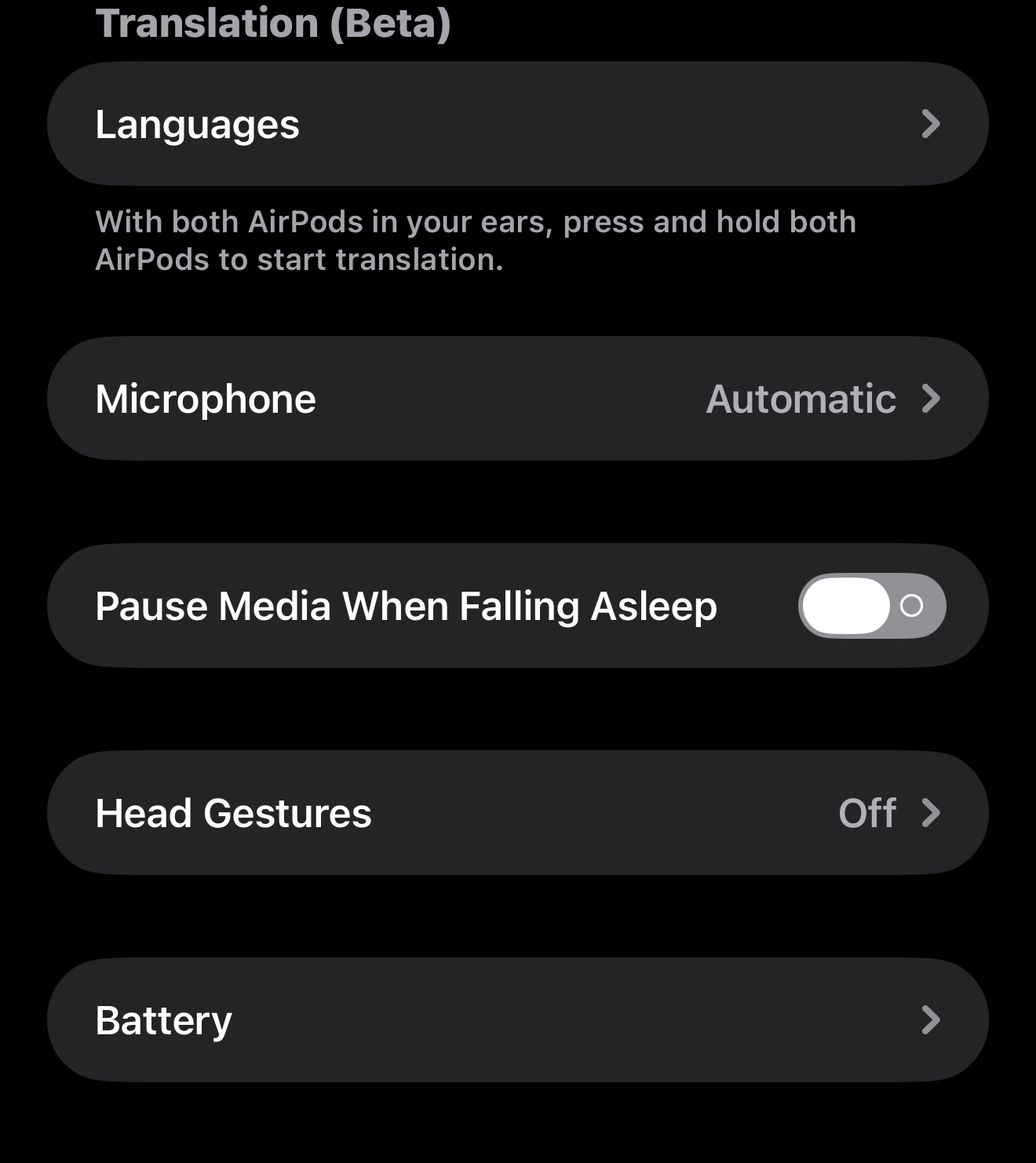
Pause Media When Falling Asleep

iOS 26 gave AirPods Pro a new setting you might want to turn on - 9to5Mac

Sleep detection in iOS 26 pauses AirPods playback when you fall asleep

I love my AirPods. I use them occasionally throughout the day, but every night for sure. I like to listen to podcasts and audiobooks right before I fall asleep. Usually, I set a timer in case I drift off without noticing. However, sometimes I forget to set it, or I want to listen just a bit longer and end up falling asleep without stopping the audio.

Well, apparently this is a common issue, because Apple has introduced a toggle in iOS settings to “Pause Media When Falling Asleep.” They don’t really tell us how they’re detecting when you fall asleep, but I hope it’s not using the Apple Watch’s sleep features because I really don’t like sleeping with my watch on.

This toggle appears in settings for those with AirPods Pro 2, AirPods Pro 3 and AirPods 4, but it is not on by default.

A settings menu on a device shows options for languages, microphone, sleep media pause, head gestures, and battery.

The Exorcist

Remembering: The Exorcist 🍿

Happy Halloween! Seeing all these awesome costumes everywhere got me thinking about the scariest movie I remember watching as a kid.

When I was pretty young, the scariest movies around were A Nightmare on Elm Street and the Friday the 13th series. All the kids would watch them (most of us without our parents knowing), and we’d scare ourselves to death, then lie awake at night unable to sleep. But the scariest movie I ever saw as a kid was probably in early middle school, when I watched The Exorcist for the first time.

I had a TV with a VCR in my room, and we rented it from somewhere (probably Blockbuster). I remember sitting cross-legged on the floor, watching it at night. I was completely entranced and so absorbed in the movie that something happened and I screamed. I had never screamed involuntarily in my life, but I did that night.

Today, I don’t even remember what scared me so badly, but I know it was intense. After that experience, I didn’t watch many more horror films. They’re just not my cup of tea. I prefer action movies, comedies, and historical dramas.

That one movie might be the reason I got turned off horror films entirely. Now I can watch them with no real reaction besides the occasional ill-timed jump scare, and honestly, it doesn’t bother me. Some are so ridiculous that I roll my eyes at the few glimpses I catch when other people are watching them.

Anyway, since it’s Halloween, I thought it’d be fun to start a conversation. Let’s talk about movies from our childhood that left an impact. They don’t have to be horror films, just anything that affected you in one way or another. It could be a positive impact or, like mine, a terrifying one. Go nuts and share your stories!

Chat Folders on Signal

Signal, the private messenger, posted that they will now support Chat Folders. Now we can organize our different chats into groups like family, friends, work or even projects. I think this is a great addition to Signal. I plan to make use of this feature as soon as I see it available on my apps.

A promotional graphic for Signal's desktop app highlights features such as customizable chat folders, message filtering, and organization tools.

AI in the CLI

Okay, this one is definitely for us nerdy types out there. We’ve all used some kind of AI service in the past, like OpenAI’s ChatGPT, Anthropic’s Claude, Google’s Gemini, or maybe even Microsoft’s Copilot. We use these guys on the web, but have you ever used them locally via your command line?

In this NetworkChuck video, he shows us how to use AI directly in the command line. He argues that it’s much faster and allows you to do things like keep the context of your chats locally in a folder and file structure.

Gemini CLI, for example, is free and in his video, he shows you how to install it and walks through the process. It can access files, run scripts, and allows you to have context management right from your terminal. But he doesn’t stop there.

He goes on to tell you about the awesomeness of Claude Code. This version of the AI service uses Anthropic’s Claude and does pretty much everything Gemini does, but it’s a little more versatile because it uses agents.

Agents are basically specialized versions of AI that you create. First, you create the agent by giving it the parameters and characteristics you want it to have. Then, you have it only answer questions it is an expert at. For example, you can designate one as an expert at networking, and then have that agent help you design the best home lab. While another agent that you designed to be a travel agent can focus on creating an itenirary for your weekend trip to New York.

He then kicks it up a notch and shows you how to put all these agents together to work collaboratively, finding the most thorough responses for you. It is a very powerful tool.

If you’re into experimenting and trying new things, especially on the command line, I would definitely give this video a look. He goes through it pretty quickly, but you can pause and examine things more closely, then do your own research to get the specifics down before trying it yourself.

I would caution you that these AI tools ask for a lot of permissions to access things on your computer and on the web, and you do have to give explicit permissions, which is a good thing. Although he shows you how to get around these safety nets, I would think carefully about doing so and know that you’re running it at your own risk at that point.

Just be careful and have fun.

Rubber Ducky

What Is A USB ‘Rubber Ducky’?

It’s frightening to know you can plug in a regular-looking USB drive and suddenly your computer is taken over.

Have you ever found a random thumb drive and thought it was your lucky day? Well, after reading this article, you’ll think twice before inserting any random thumb drive into your computer.

Here’s why: these thumb drives can contain malicious payloads. Some attackers intentionally drop thumb drives in parking lots and other public places, hoping someone will pick one up and plug it into their computer to see what’s on it. Security experts call these intentional drops “candy drops” or “baiting attacks.”

When you plug one of these bad boys in, a script runs automatically, and your computer could be compromised. These attacks often use keystroke injection techniques that can enable tools like PowerShell and execute commands that take over your system.

Stay safe and practice smart computing habits. Don’t plug anyone’s thumb drive into your computer, and avoid using random USB ports in hotels or at airports for charging.

You never know what’s on the other side. It might just be a rubber ducky (a device that looks like a normal USB drive but acts as a malicious keyboard when plugged in).

Follow Me On Mastodon | Buy Me A Coffee